2 Data encoding
Context: This was written as accompanying material for the MDG Library Carpentry workshop 2026 in Birmingham.
Knowing about data encoding matters because not understanding it can lead to mangled data such as
Friðrikka Rúnarsdóttir
©2020
fünf süße Füchse
Метаданные имеют значение
메타ë°ì´í„°ê°€ ì¤'요합니다
instead of
Friðrikka Rúnarsdóttir
©2020
fünf süße Füchse
Метаданные имеют значение
메타데이터가 중요합니다
The term coined for this kind of mangled data is Mojibake.
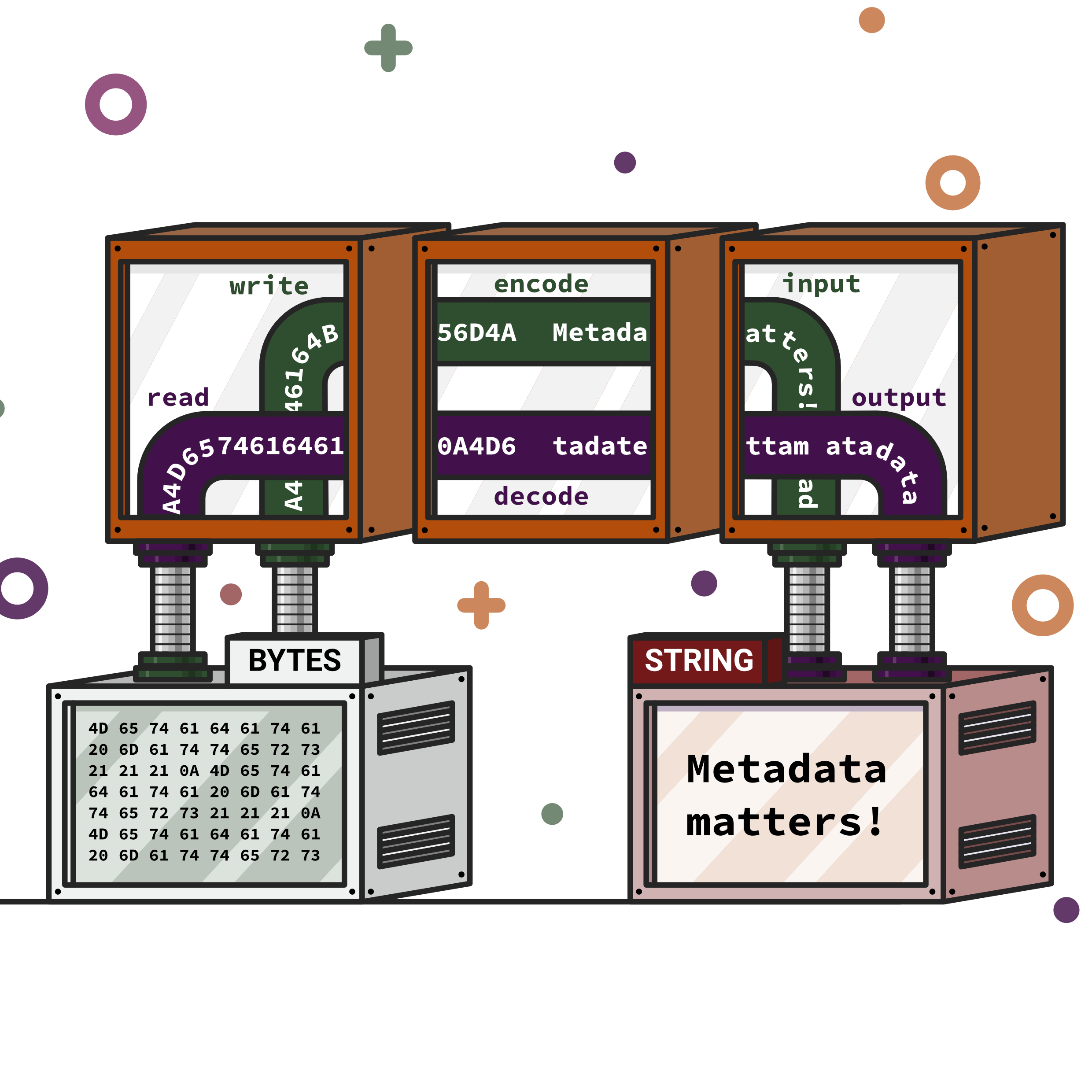
So, how does this happen? It’s all down to encoding and decoding mix-ups.
code /kəʊd/, noun
- A method of communication in which each letter (or group of letters) in a written message is systematically substituted by another, or by a symbol, to enable transmission1
- Computing*. Any system of symbols and rules for expressing information or instructions in a form usable by a computer or other digital machine for processing or transmitting information. Also: information or instructions written according to such a system.2
encode /ɛnˈkəʊd/, verb
- to translate into cipher or code3
decode /(ˌ)diːˈkəʊd/, verb
- to decipher or translate (a coded message)4
To store data on e.g. a hard disk what one sees as text or numbers on screen needs to be translated (encoded) into bits and bytes that can be stored on the disk. Vice versa when you open a document the bits and bytes it is stored in on the disk need to be decoded back into text or numbers that can be interpreted by a human.
The mapping between the visual representation one sees on screen and the bit and byte sequences that represent the data on the storage medium is called a character map. The individual mappings are code points.
The problem is that over time many such maps have been developed and they are often not compatible with each other. Thus if you encode a document using map A and then decode it using map B the result is often garbled nonsense.
ASCII
An well known early character map is ASCII (American Standard Code for Information Interchange), which was first published in 1963 and was revised multiple times until it reached its current form in 1986.
ASCII contains 128 characters, 95 if which are printable and 33 so called control characters that have no print representation (we’ll come back to those in a bit).

Each entry (code point) in this representation of the ASCII table has three columns:
- the decimal number of the code point (blue)
- the hexadecimal5 equivalent (red)
- the visual representation of the code point (green). Code points 0-32 and 127 are non-printing control characters which do not have a visual representation as such, hence the visual representation column contains a description instead.
For the English language the letters, numbers and punctuation included in ASCII is largely sufficient, but for pretty much every other language it is not suitable. There are diacritics missing and alphabets other than the basic Latin one are not included. To fill these gaps character maps containing other alphabets, diacritics etc. were developed. In the end the mess got bad though as without knowing which map had been used to encode it is impossible to decode correctly and there were so many of them. The solution: yet another character map that contains all letters, numbers, punctuation, symbols etc. for all alphabets and languages. A universal map. Enter Unicode.
Unicode
The Unicode character map is huge. As of 2026 is contains close to 160,000 characters covering 172 living and ancient scripts as well as number, punctuation, symbols, emojis, geometric shapes etc. It is no where near full yet either: it can accommodate approximately 1.1 million characters, so there’s a lot of space for expansion.
Unicode code point numbers are usually expressed in hexadecimal5 rather than decimal. The Japanese Hiragana letter は for example has code point decimal 12,399 which is 306F in hexadecimal and the ant emoji 🐜 is code point decimal 128,028 or 1F41C in hexadecimal.
What is different about Unicode than other character maps is that though it defines code points, i.e. gives every letter, number etc. a number that represents it, it is not at the same time also an encoding scheme. Unicode can be encoded in three different schemes: UTF-8, UTF-16 and UTF-32.
The difference between them is in how much space they use to store each code point.
Little excursion into bits and bytes
Ultimately any data stored on a disk is stored in a sequence of 0s and 1s, i.e. binary.
A bit is the most basic unit of digital data size. A bit can either be 1 or 0. A sequence of 8 bits is called a byte. There are 256 different forms the sequence of 0s and 1s in a byte can take; from 00000000 to 11111111. Looking at 00000000 as a binary number it is the equivalent to the decimal 0, whereas 11111111 equals 255 in the decimal number system (0-255 = 256 numbers).
Encoding schemes like ASCII map directly from their code point numbers to bytes:
a = 97 = 01100001
Translating code point numbers bigger than 255 like this will need more than one byte. Encoding code point 12,399, the Unicode code point for the Japanese Hiragana letter は, like this would take two bytes: the binary equivalent of 12,399 is 11000001101111, which doesn’t fit into the 8 bits of a byte. It also doesn’t quite fill two bytes as its 14 characters long, but we want a nice distinction as to where one character ends and another begins to lets add two 0s at the start, which makes it 16 bits long and still means the same thing:
00110000 01101111
Doing the same with Unicode code point 128,028, the ant emoji 🐜 will need 3 bytes:
00000001 11100000 10010100
This becoming quite hard to read. Enter hexadecimal5 and the nibble:
A nibble is a block of 4 bits or half a byte. The possible sequences of 0s and 1s in a nibble are 16. Hexadecimal is a base 16 number system with 16 digits: 0, 1, 2, 3, 4, 5, 6, 7, 8, 9, A, B, C, D, E and F. So, with one nibble we can encode each of those 16 hexadecimal digits. And using two digit hexadecimals we can express all 256 possible sequences of a byte.
Thus in hexadecimal code point 97 representing a becomes hexadecimal 61. That’s easier to read for a human than the binary 01100001.
The Hiragana letter は with code point 12,399 becomes 306F in hexadecimal. Again much easier to read than 00110000 01101111.
And for 🐜 with code point 128,028 we get 1F41C in hexadecimal. Much easier to read and work with for a human than 00000001 11100000 10010100.
To make the byte boundaries even clearer lets add a space between each two digit hexadecimal:
a = 61
は = 30 6F
🐜 = 01 F4 1C
This is why Unicode code points are usually expressed using hexadecimals. Hexadecimal provides a concise and human-friendlier way to represent binary data without losing the byte structure. It’s an ideal bridge between computer architecture and what humans can understand and comprehend.
The Unicode code point expression for our 3 example characters are
a → U+0061
は → U+306F
🐜 → U+1F41C
Returning to Unicode
OK, let’s come back to the three encoding schemes for Unicode: UTF-8, UTF-16 and UTF-32.
UTF-8 encoding varies how many bytes is uses for each character depending on how few it can get away with. So it can tell how many bytes were used when decoding it again certain patterns are used that ensure character boundaries can be recognised:
- for code points 0-127 (hex 0000-007F) it can get away with 1 byte, leaving the first bit of it as 0 as marker that this is a one byte encoding (
0xxxxxxx). And yes these 128 code points overlap exactly with ASCII, which is why UTF-8 is ASCII compatible. - for code points 128-2047 (hex 0080-07FF) it needs 2 bytes, the pattern is
110xxxxx10xxxxxx, - for code points 2048-65,535 (hex 0800-FFFF) 3 bytes are needed with the pattern
110xxxxx10xxxxxx10xxxxxx, - all higher code points (hex 10000-10FFF) need 4 bytes with the pattern
110xxxxx10xxxxxx10xxxxxx10xxxxxx.
Because of the prefix bits the hex representation of the bytes when more than one byte is used does not match the hex representation of the code point number.
UTF-16 encoding will always use either 2 bytes or 4 bytes to encode a character. When 4 bytes are needed things get complicated and as with UTF-8 the hex representation of the bytes and hex representation of the code point number diverge.
UTF-32 encoding uses 4 bytes for each character. No divergence here. The hex representation of the bytes and hex representation of the code point number are always the same.
So, for our three example code points that means:
a |
は |
🐜 |
|
|---|---|---|---|
| Code point | U+0061 | U+306F | U+1F41C |
| UTF-8 encoding | 41 |
E3 81 AF |
F0 9F 90 9C |
| UTF-16 encoding | 00 41 |
30 6F |
D8 3D DC 1C |
| UTF-32 encoding | 00 00 00 41 |
00 00 30 6F |
00 01 F4 1C |
codepoints.net is a useful site to find how to express a Unicode character in each encoding scheme as well as all sorts of other circumstances, programming languages or is codepoint.net
Which Unicode encoding scheme to use?
Generally, UTF-8 is the best choice. It is usually used for web pages and due to its variable length means that English text takes a lot less storage space than in the other encodings. It’s also useful for older documents that use ASCII as it is compatible to it, while UTF-16 and UTF-32 are not. UTF-8 is the de-facto standard for the web and most modern programming languages.
UTF-16 is more space efficient for many Asian character sets. As can be seen in the table above due to the indexing bytes UTF-8 uses it actually needs more storage space for those characters than UTF-16 does.
Finally, UTF-32 is only useful for specialised text processing and quick indexing. Because every character is using the same number of bytes it’s possible to calculate string lengths and jump to index position without having to scan through everything character by character first. The trade-off is that for text that uses mostly basic Latin characters it takes four time more storage space than UTF-8.
Encoding in action
Excel
When importing data into Excel choosing the right encoding on import avoids character mangling. Excel has a habit of trying to guess the correct encoding and getting it wrong. In my experience it especially likes to use Windows-1252, or ANSI where UTF-8 is needed. It’s always worth checking, and if needed changing, the choice Excel makes.
MarcEdit
If you work with MarcEdit, you might have seen the “Character Encoding Options” in the MARC Tools window:
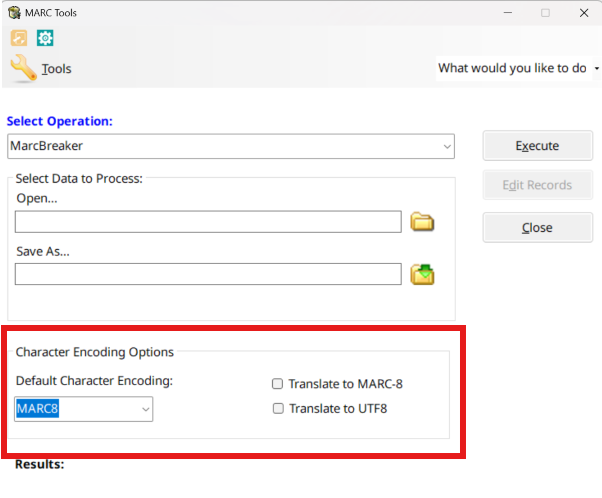
The default character encoding drop down should contain the character set your source file uses. You can then choose to get this translated into MARC-86 or UTF-8. It’s not always easy to know the encoding scheme of the source file, so some experimentation may be required. I generally try to end up with UTF-8 encoded files unless the use case specifically needs MARC-8 (highly unlikely).
If you get mangled characters where diacritics or special characters such as © are expected after using MARC Tools the reason will be that the “Default Character Encoding” setting was wrong for your file.
Non-printing control characters
Non-printing control characters are characters that have no visual representation. They cause effects such as starting a new line of text.
Though they do not have a visual representation as such there are techniques to display them7. Examples of this are:
- up to three, sometimes small caps, capital letters, e.g. LF for Line Feed (code point 10 in ASCII and Unicode) and CR for Carriage Return (code point 13 in ASCII and Unicode)8. The “Enter” key on your keyboard will produce these two characters together on Windows 9. The “tab” key (often marked with ⇥ or ↹) inserts code point 9 TAB.
- using an escape sequence, i.e. a character prepended by an escape character that marks the character as having a special meaning. Common escape characters are
\(black slash) and&. Sometimes the escape control characters (ESC, code point 27 in ASCII and Unicode) is used. e.g. Line Feed is commonly expressed as\n, Carriage Return as\rand Tab as\t.
Control characters in MARC (and a little excursion into the anatomy of a MARC record)
Mark makes use of control characters to set indicators and control field values to blank (yes SPACE (code point 32), is a control character) and to separate fields, subfields and records from one another. This is only visible if one looks at the record in raw MARC though, you can’t see it in the mnemonic format used for data entry and manipulation. Once you have a .mrc (i.e. a raw MARC field to work with), open it in e.g. Notepad++ or Visual Studio Code and switch the display of control characters on7. You might also want to enable line wraps10. If you’ve never seen a raw MARC record before what you see will look kind of familiar and alien at the same time and look something like this:
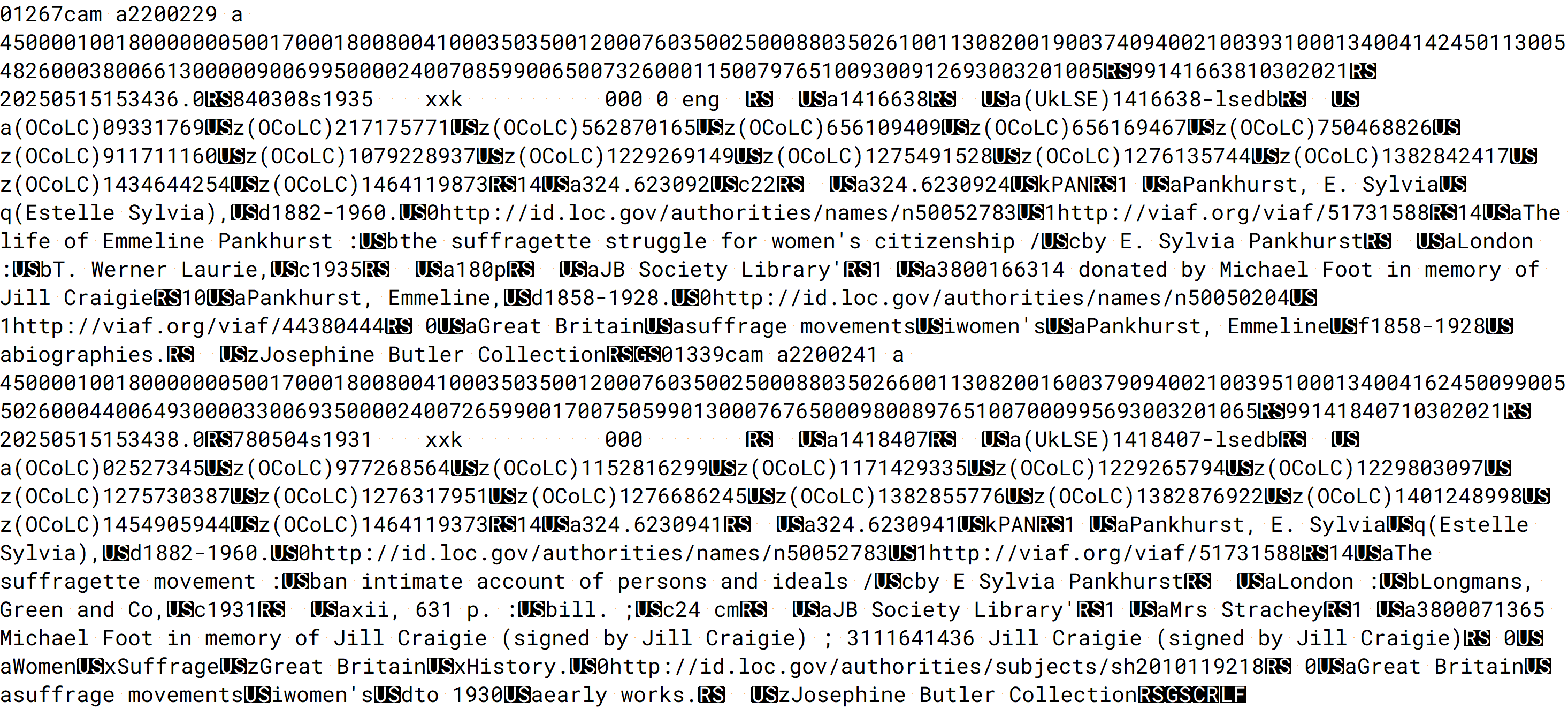
These are two raw MARC records with control characters showing.
A raw MARC record as three parts:
-
The LEADER: that’s the first 24 characters (character positions 00-2311) and these might look familiar as the LEADER is usually displayed in the mnemonic format as well:
01267cam a2200229 a 4500 -
The DIRECTORY: that’s a part you never get to see in mnemonic format; ranging from the 25th character (character position 24) to the first occurrence of RS. It contains all the tag numbers, how long each tag is and where in the record it starts. You may have noticed that the tags are missing from the vaguely familiar looking rest of the record. That is because they are stored here in groups of 12 characters. Those 12 characters are split into three sections:
- character positions 00-02 (i.e. the first three characters) are the tag
- character positions 03-06 contain the field length. (Ever come up against an error telling you that a field exceeded 9999 characters? Here’s the reason: 9999 is the maximum length that can be expressed in 4 characters.)
- character positions 07-11 is the index of the start character of the field in the variable field section of the record. (Another error you might have seen: a MARC record can at maximum be 99,999 characters long and here is the reason: index 99,999 is the maximum that can be expressed in 5 characters.)
For the first record in the example above we have
001001800000005001700018008004100035035001200076035002500088035026100113082001900374094002100393100013400414245011300548260003800661300000900699500002400708599006500732600011500797651009300912693003201005Broken down that gives us:
| TAG | LENGTH | START INDEX | |-----|--------|-------------| | 001 | 0018 | 00000 | | 005 | 0017 | 00018 | | 008 | 0041 | 00035 | | 035 | 0012 | 00076 | | 035 | 0025 | 00088 | | 035 | 0261 | 00113 | | 082 | 0019 | 00374 | | 094 | 0021 | 00393 | | 100 | 0134 | 00414 | | 245 | 0113 | 00548 | | 260 | 0038 | 00661 | | 300 | 0009 | 00699 | | 500 | 0024 | 00708 | | 599 | 0065 | 00732 | | 600 | 0115 | 00797 | | 651 | 0093 | 00912 | | 693 | 0032 | 01005 | -
The VARIABLE FIELD values (including subfield codes). This is where the majority of control characters are used:
- RS (Record Separator, code point 31 or 1E in hex) is used to separate the directory from the variable field and the variable fields from each other. Both the directory and each variable field end in RS.
- US (Unit Separator, code point 32 or 1F in hex) indicates the start of a subfield. The first character following it is the subfield code. This is the character that in Library Management Systems is often represented as
|,$or‡.
The two characters between RS and US are the indicators (not present for 001-008 as these are control fields that do not have indicators).
- GS (Group Separator, code point 30 or 1D in hex) terminates the record.
Annotated bibliography and further reading
BBC Bitesize again has two gentle introductions to how data is stored by computers. They introduce bits and bytes, binary and hexadecimal number systems as well as ASCII and the basics of image and sound storage. W3School’s “Introduction to Programming” also has a very accessible intro to data storage (and it might lead you to reading more about programming concepts).
- ‘Binary and data representation’ (no date) BBC Bitesize. Available at: https://www.bbc.co.uk/bitesize/guides/z6qqmsg [Accessed: 24 May 2026]
- ‘Fundamentals of data representation’ (no date) BBC Bitesize. Available at: https://www.bbc.co.uk/bitesize/guides/zd88jty [Accessed: 24 May 2026]
- ‘What are Bits and Bytes?’ (no date) W3Schools. Available at: https://www.w3schools.com/programming/prog_bits_and_bytes.php [Accessed: 24 May 2026]
Moving on to actual encodings and code points, I found the following useful. They vary a bit in how deep they go and how techy they get, but all are on the accessible side:
-
Ishida, Richard (2018) Character encodings: Essential concepts. Available at: https://www.w3.org/International/articles/definitions-characters/ [Accessed: 24 May 2026]
This explains Unicode and how UTF-8, UTF-16 and UTF-32 work.
-
Ishida, Richard (2020) Character encodings for beginners. Available at: https://www.w3.org/International/questions/qa-what-is-encoding [Accessed: 24 May 2026]
This one is more generally about character encoding and also explores the relationship between encoding and fonts.
-
Ishida, Richard (2024) Character Sets and Encodings. Available at: https://www.w3.org/International/getting-started/characters [Accessed: 24 May 2026]
This is more of a landing page with links to more in-depth information. As this is a W3C site there is a lot of emphasis on web development and how to deal with character encoding in HTML.
-
Krukowski, Ilya (2025) ‘Character encoding: Types, UTF-8, Unicode, and more explained’, Lokalise blog, 7 April. Available at: https://lokalise.com/blog/what-is-character-encoding-exploring-unicode-utf-8-ascii-and-more [Accessed: 24 May 2026]
-
Spolsky, Joel (2003) ‘The Absolute Minimum Every Software Developer Absolutely, Positively Must Know About Unicode and Character Sets (No Excuses!)’, Joel on software, 8 October. Available at: https://www.joelonsoftware.com/2003/10/08/the-absolute-minimum-every-software-developer-absolutely-positively-must-know-about-unicode-and-character-sets-no-excuses/ [Accessed: 24 May 2026]
Quite old, but still very much true and often referenced.
-
Zentgraf, David C. (2015) What every programmer absolutely, positively needs to know about encodings and character sets to work with text. Available at: https://kunststube.net/encoding/ [Accessed: 24 May 2026]
The Wikipedia articles on the subject all take you a lot deeper into the topic and may be more suitable once you got the basics and want to know more.
- ‘ASCII’ (2026) Wikipedia. Available at: https://en.wikipedia.org/wiki/ASCII [Accessed: 24 May 2026]
- ‘Bit’ (2026) Wikipedia. Available at: https://en.wikipedia.org/wiki/Bit [Accessed: 24 May 2026]
- ‘Byte’ (2026) Wikipedia. Available at: https://en.wikipedia.org/wiki/Byte [Accessed: 24 May 2026]
- ‘Character encoding’ (2026) Wikipedia. Available at: https://en.wikipedia.org/wiki/Character_encoding [Accessed: 24 May 2026]
- ‘Comparison of Unicode encodings’ (2026) Wikipedia. Available at: https://en.wikipedia.org/wiki/Comparison_of_Unicode_encodings [Accessed: 24 May 2026]
- ‘Mojibake’ (2026) Wikipedia. Available at: https://en.wikipedia.org/wiki/Mojibake [Accessed: 24 May 2026]
- ‘Unicode’ (2026) Wikipedia. Available at: https://en.wikipedia.org/wiki/Unicode [Accessed: 24 May 2026]
- ‘UTF-8’ (2026) Wikipedia. Available at: https://en.wikipedia.org/wiki/UTF-8 [Accessed: 24 May 2026]
- ‘Windows-1252’ (2026) Wikipedia. Available at: https://en.wikipedia.org/wiki/Windows-1252 [Accessed: 24 May 2026]
Finally, some further sources I used to put the workshop together.
- ‘code, n., sense II.4.b’ (2026) in Oxford English Dictionary. Available at: https://doi.org/10.1093/OED/1750064856 [Accessed: 24 May 2026]
- ‘code, n., sense II.7’ (2026) in Oxford English Dictionary. Available at: https://doi.org/10.1093/OED/8027718018 [Accessed: 24 May 2026]
- ‘decode, v.’ (2025) in Oxford English Dictionary. Available at: https://doi.org/10.1093/OED/3318848028 [Accessed: 24 May 2026]
- ‘encode, v.’ (2025) in Oxford English Dictionary. Available at: https://doi.org/10.1093/OED/7215232060 [Accessed: 24 May 2026]
- FAQ (no date) Available at: https://home.unicode.org/basic-info/faq/ [Accessed: 24 May 2026]
- Library of Congress Network Development and MARC Standards Office (2000) MARC 21 Specification for Record Structure, Character Sets, and Exchange Media. Available at: https://www.loc.gov/marc/specifications/spechome.html [Accessed: 24 May 2026]
- MrAureliusR (2025) ASCII-Table-wide.svg. Available at: https://commons.wikimedia.org/wiki/File:ASCII-Table-wide.svg [Accessed: 24 May 2026]
- Supported Scripts (no date) Available at: https://www.unicode.org/standard/supported.html [Accessed: 24 May 2026]
- Unicode 17.0 Character Code Charts (no date) Available at: https://www.unicode.org/charts/ [Accessed: 24 May 2026]
- Unicode 17.0 Versioned Charts Index (no date) Available at: https://www.unicode.org/charts/PDF/Unicode-17.0/ [Accessed: 24 May 2026]
- Unicode Code Charts Help and Links (no date) Available at: https://unicode.org/charts/About.html [Accessed: 24 May 2026]
- Unicode Planes (no date) Available at: https://codepoints.net/planes [Accessed: 24 May 2026]
- Unicode Statistics (2025) Available at: https://www.unicode.org/versions/stats/ [Accessed: 24 May 2026]
Tools and software
Looking up code points for characters and how to represent them in various languages:
- Codepoints (no date) Available at: https://codepoints.net/ [Accessed: 24 May 2026]
Converting between all sorts of number formats:
- Number Converter (no date) Available at: https://www.rapidtables.com/convert/number/index.html [Accessed: 24 May 2026]
Text editors and extensions:
-
Ho, Don (2026) Notepad++ [Computer programme]. Available at: https://notepad-plus-plus.org/ [Accessed: 24 May 2026]
Easy entry-level text editor that is useful for working with data files.
-
Microsoft (2026) Visual Studio Code [Computer programme]. Available at: https://code.visualstudio.com/ [Accessed: 24 May 2026]
Much more than a text editor, more of a development environment. Steeper learning curve than Notepad++.
-
Microsoft (2026) Visual Studio Code (browser version) [Computer programme]. Available at: https://vscode.dev/ [Accessed: 24 May 2026]
The in-browser version of Visual Studio Code.
-
Sublime HQ (2026) Sublime Text [Computer programme]. Available at: https://www.sublimetext.com/ [Accessed: 24 May 2026]
Powerful text editor. The learning curve might be a bit steeper than Notepad++.
Notepad++ extensions:
-
BdR76 (2025) CSVLint [Computer programme]. Available at: https://github.com/BdR76/CSVLint/ [Accessed: 24 May 2026]
Makes working with CVS, other delimited files in Notepad++ easier. Recommend installing this via Notepad++ rather than downloading from GitHub, it’s easier: Plugins → Plugins Admin → Search for “CSVLint” → Tick the check box next to the name → Click “Install” (top right).
-
molsonkiko (2026) JsonToolsNppPlugin [Computer programme]. Available at: https://github.com/molsonkiko/JsonToolsNppPlugin [Accessed: 24 May 2026]
An extension/plugin to make working with JSON in Notepad++ easier. Recommend installing this via Notepad++ rather than downloading from GitHub, it’s easier: Plugins → Plugins Admin → Search for “JSON Tools” → Tick the check box next to the name → Click “Install” (top right).
-
morbac (2022) xmltools [Computer programme]. Available at: https://github.com/morbac/xmltools [Accessed: 24 May 2026]
An extension/plugin to make working with XML in Notepad++ easier. Recommend installing this via Notepad++ rather than downloading from GitHub, it’s easier: Plugins → Plugins Admin → Search for “XML Tools” → Tick the check box next to the name → Click “Install” (top right).
VS Code extensions:
-
mechatroner (2026) Rainbow CSV [Computer programme]. Available at: https://marketplace.visualstudio.com/items?itemName=mechatroner.rainbow-csv [Accessed: 24 May 2026]
A Visual Studio Code extension that makes working with delimited files a lot easier.
-
The hexadecimal system is using base 16 instead of base 10 which the decimal numbering system we are used to uses. We do not have a single character symbol that would represent 10 or 13 though, so the most common representation is using 0-9 and then A-F to represent 10-15. E.g. decimal
12expressed in hexadecimal isC; decimal17is11in hexadecimal and the equivalent of31decimal is1Fhexadecimal. The “Hex Basics” section of the following tutorial is a reasonably gentle introduction to the concept of the hexadecimal system: [https://learn.sparkfun.com/tutorials/hexadecimal/all](https://learn.sparkfun.com/tutorials/ ↩ ↩2 ↩3 -
MARC-8 is a character set that is only used with MARC records and part of the MARC standard. If you can, using UTF-8 is preferable. ↩
-
In Notepad++ you can make control characters (as well as spaces) visible by toggling the
¶button. In VS code especially showing Line Feed and Carriage Return is only possible with hacks. Other control characters can be shown by ticking “Render Control Characters” in View → Appearance. ↩ ↩2 -
The function of Line Feed and Carriage Return is easier to visualise with a typewriter: To start a new line the paper needs to be moved up one line (that’s the Line Feed) and carriage (the moving part at the top) needs to return to its start position (that’s the Carriage Return). ↩
-
see also the note on newlines ↩
-
The button for line/word wraps in Notepad++ is just to the left of the one toggling control character display. In VS Code you can use the keyboard shortcut
Alt + Zor View → Word Wrap. ↩ -
Remember the indexing in arrays? It starts with 0 rather than 1, hence the first character position in a MARC record is 00. ↩